
Theme (PrestaShop)
The Theme page controls six color tokens used by the storefront search UI: Search Box, Search Results Page, Autocomplete dropdown, Empty Query content, and related search surfaces.
For most stores, the practical first change is Accent color
(main_accent). Change the other tokens only if text contrast, borders,
buttons, or backgrounds do not fit the storefront theme.
For Theme behavior that is the same across platforms, see Theme. This page covers the PrestaShop workflow.
Where to find it
Section titled “Where to find it”In the PrestaShop back office:
- Open Modules -> Module Manager.
- Find Kea Labs Search Pro in the module list.
- Click Configure on the module row.
- The embedded Kea Labs dashboard opens inside the Configure page.
- In the dashboard sidebar, expand UI Settings.
- Click Theme.
The page opens at the dashboard route /search/settings/theme.
The current UI Settings group also includes Integration, Search Box, and Card Template. Theme is the color-token page; it is not the general UI editor.
What is on the Theme page
Section titled “What is on the Theme page”The Theme page exposes a section labelled Colors followed by six color pickers:
| # | English label | Color key | Default |
|---|---|---|---|
| 1 | Header color | text_header |
#2b2b2b |
| 2 | Main color | text_main |
#3a3a3a |
| 3 | Accent color | main_accent |
#121a4b |
| 4 | Button color | second_accent |
#a22d2d |
| 5 | Border color | border_color |
#cfcfcf |
| 6 | Background color | background_color |
#ffffff |
For what each color drives, see Theme: What each color controls.
Recommended approach
Section titled “Recommended approach”- Start with Accent color (
main_accent) and set it to the store’s primary brand/accent color. - Save and verify the Search Box, autocomplete dropdown, and results page in preview.
- Change Button color only if action buttons need a separate brand color.
- Change text, border, or background colors only if readability or theme matching requires it.
This keeps the theme change small and reversible.
How to change theme colors
Section titled “How to change theme colors”- Open UI Settings -> Theme.
- Pick the color you want to change.
- Type a hex code or use the color picker control.
- Click Save Changes.
- Wait for the preview build dialog to finish.
- Verify the storefront preview before relying on the change in production.
- Publish only after preview shows the expected colors.
No catalog reindex is required. Theme changes are configuration changes, not catalog-data changes. They update the preview bundle first; production changes only after publish.
Use the right page for related changes
Section titled “Use the right page for related changes”The Theme page does not control:
- Live search on/off or search experience mode - use Integration (PrestaShop).
- Search Box behavior and selectors - use Search Box (PrestaShop).
- Card markup - use Card Template (PrestaShop).
- Fonts, spacing, radius, shadows, or custom CSS - use Advanced Customization (PrestaShop).
- The storefront theme outside search - edit the PrestaShop theme or merchant CSS, not the Kea Theme page.
Screenshot
Section titled “Screenshot”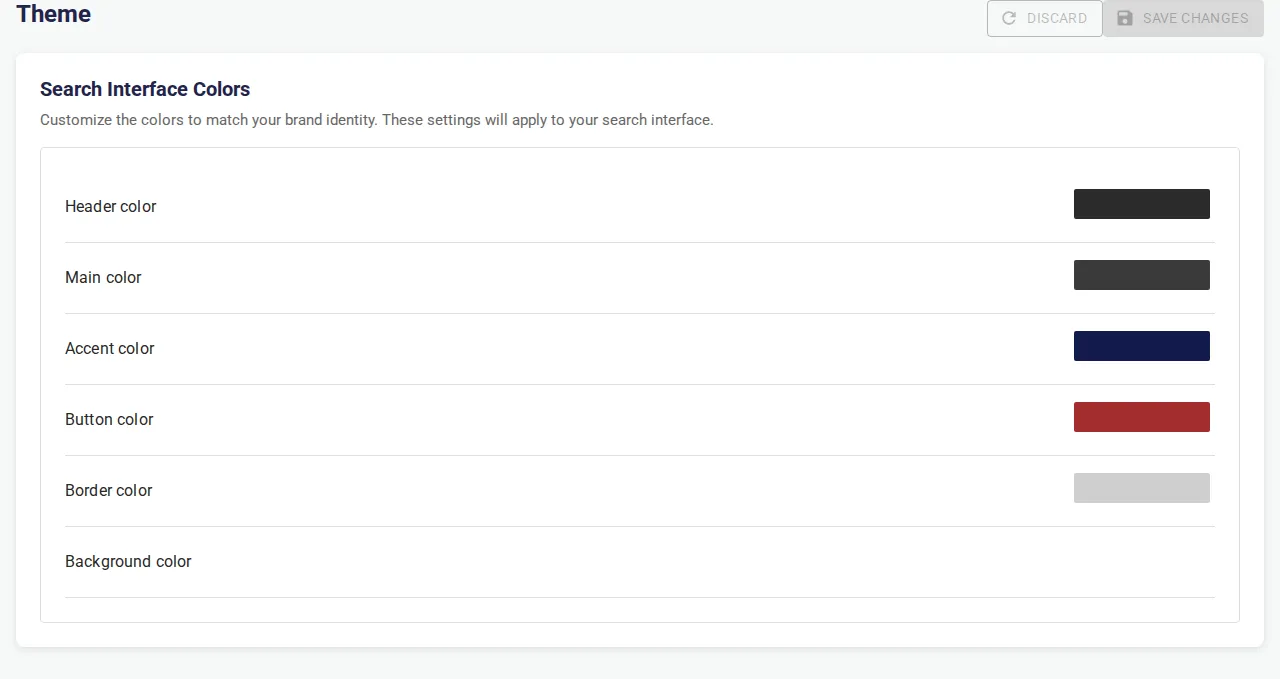
This screenshot shows the current UI Settings -> Theme page in the
real PrestaShop Configure iframe. In practice, most stores start by
changing Accent color (main_accent) and leave the other color
tokens unchanged unless preview shows a contrast or brand mismatch.