
Search Analytics (PrestaShop)
Search Analytics helps you understand what shoppers search for after Kea-powered search is running on the storefront. It is a reporting area, not a configuration area: use it to decide what to improve, then make the change on the relevant settings page.
Where to find it
Section titled “Where to find it”In the PrestaShop back office:
- Open Modules -> Module Manager.
- Find Kea Labs Search Pro in the module list.
- Click Configure on the module row.
- The embedded Kea Labs dashboard opens inside the Configure page.
- In the dashboard navigation, open Analytics.
The analytics pages use the selected time period shown in the top-right corner of each report. The current dashboard exposes Last 30 Days for the reports shown below.
What each Analytics page is for
Section titled “What each Analytics page is for”| Page | Use it when you want to know |
|---|---|
| Dashboard | Search volume, click rate, zero-result count, click count, and the search activity trend. |
| Top Queries | Which queries shoppers type most often and how those queries perform. |
| Zero Results | Which queries return no products and should be fixed with catalog data, synonyms, or merchandising. |
| Lost Opportunities | Which high-volume queries get little or no shopper action after results are shown. |
| Popular Products | Which products receive the most search-driven clicks. |
Dashboard
Section titled “Dashboard”The Dashboard page gives you the overview: total searches, click rate, zero-result searches, click events, and the search activity chart.
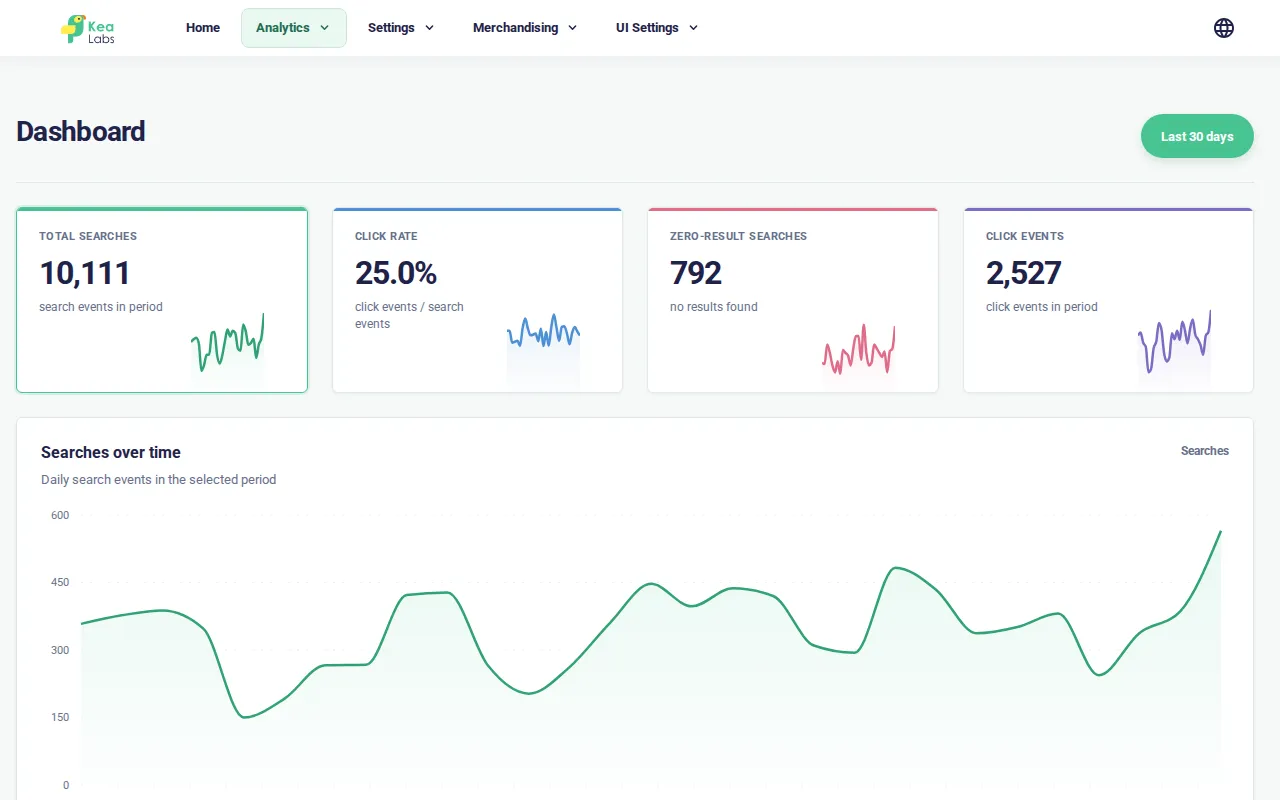
Use this page first. If one KPI looks wrong, open the detailed page for that metric.
Top Queries
Section titled “Top Queries”Top Queries lists the most common shopper searches. Use it to understand what language shoppers use and which product categories receive demand.
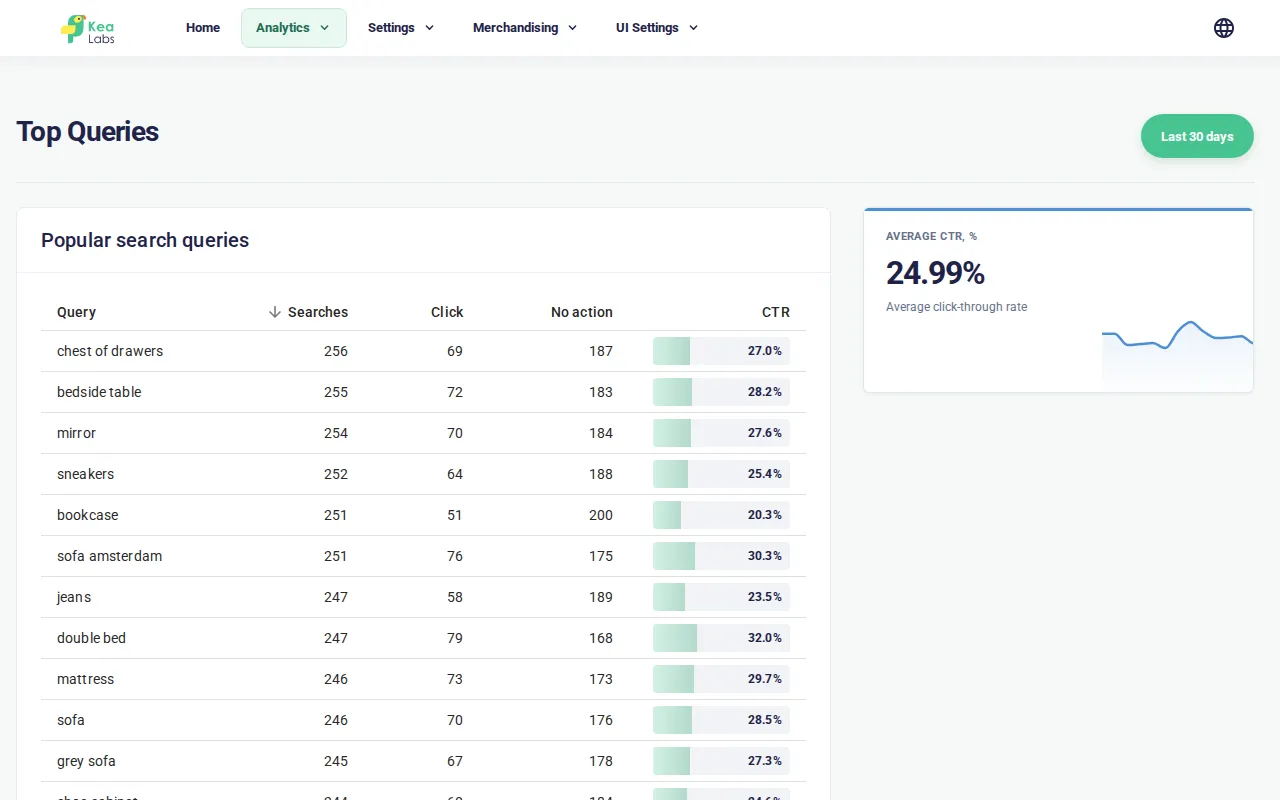
If a popular query has a low click-through rate, check whether the best products are ranked high enough. Field priorities, synonyms, facets, and card presentation can all affect the outcome.
Zero Results
Section titled “Zero Results”Zero Results lists searches that returned no products.
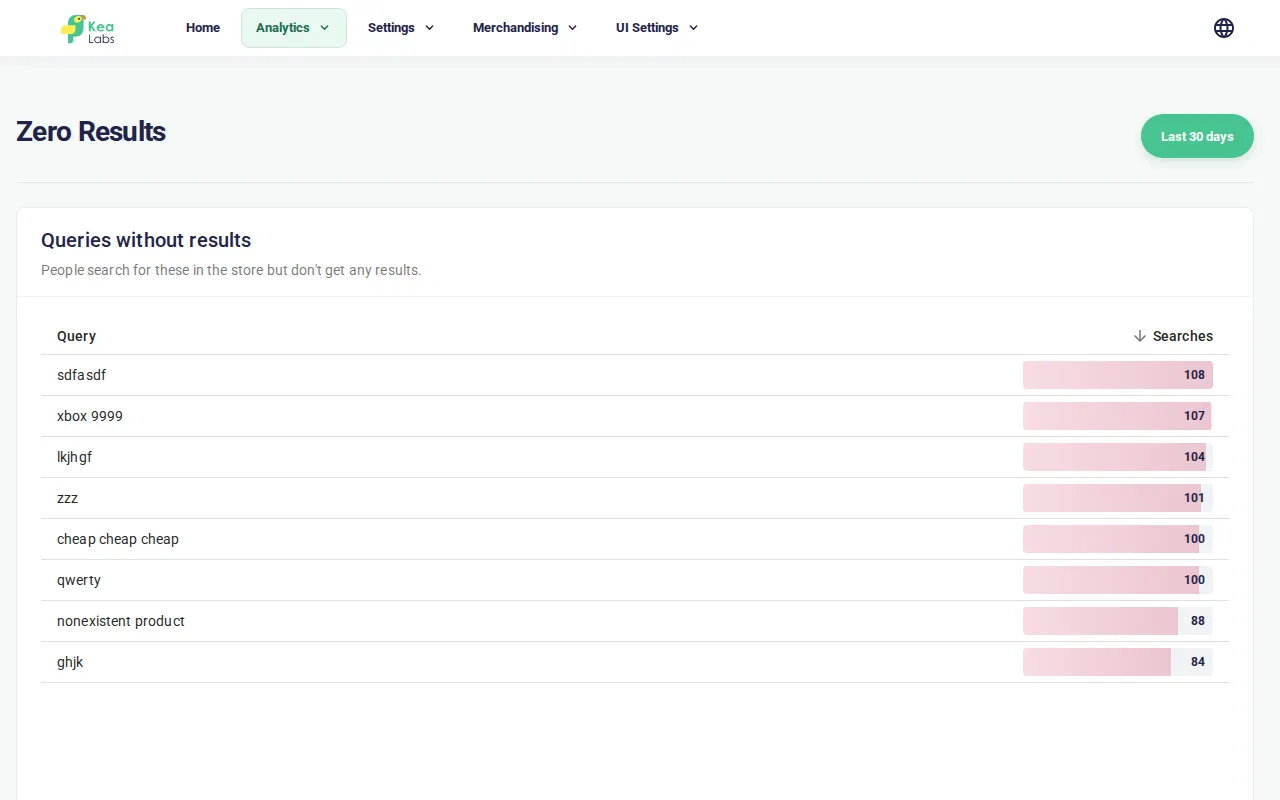
Use this page to find gaps in catalog naming, missing synonyms, missing categories, or products that are not indexed for the current shop and language.
Lost Opportunities
Section titled “Lost Opportunities”Lost Opportunities lists queries that receive searches but little shopper action.
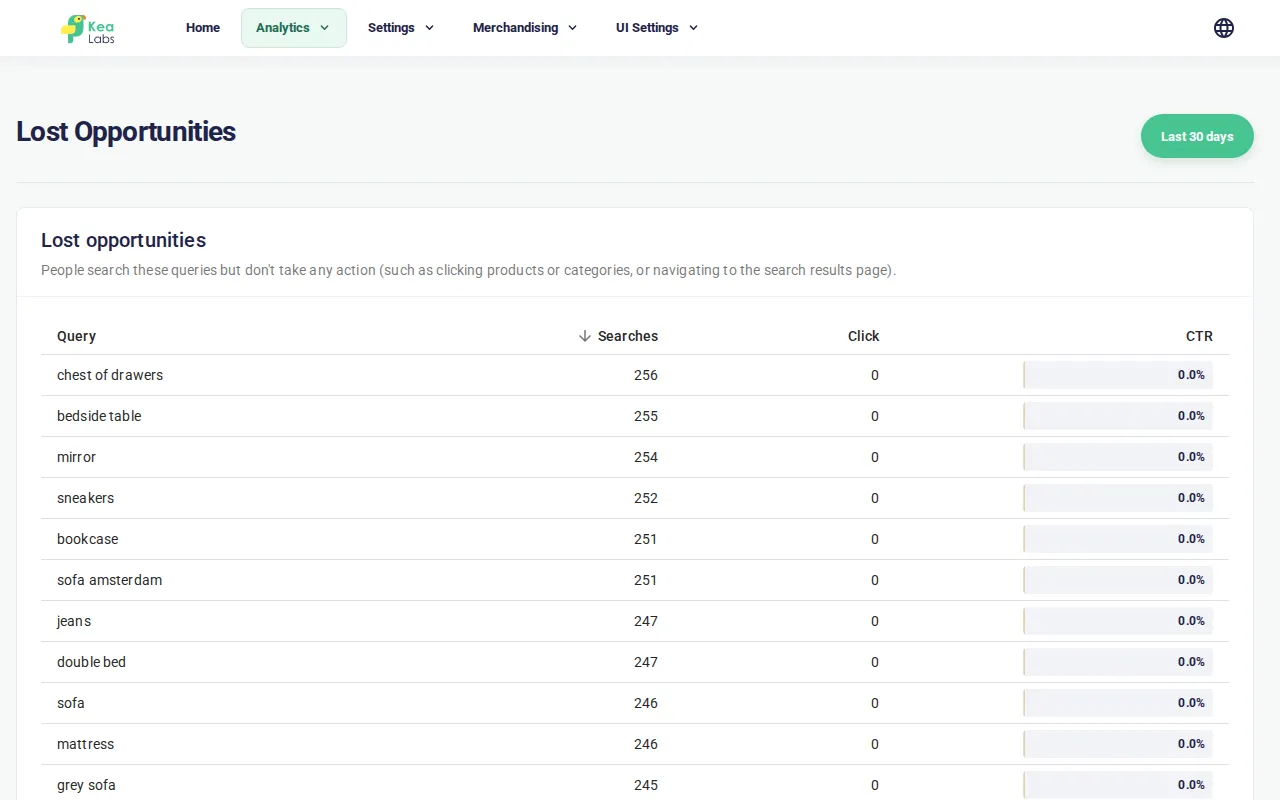
Use this report after checking zero-result queries. A lost-opportunity query usually returns products, but the result set is not convincing enough for shoppers to click.
Popular Products
Section titled “Popular Products”Popular Products shows products that receive search-driven clicks.
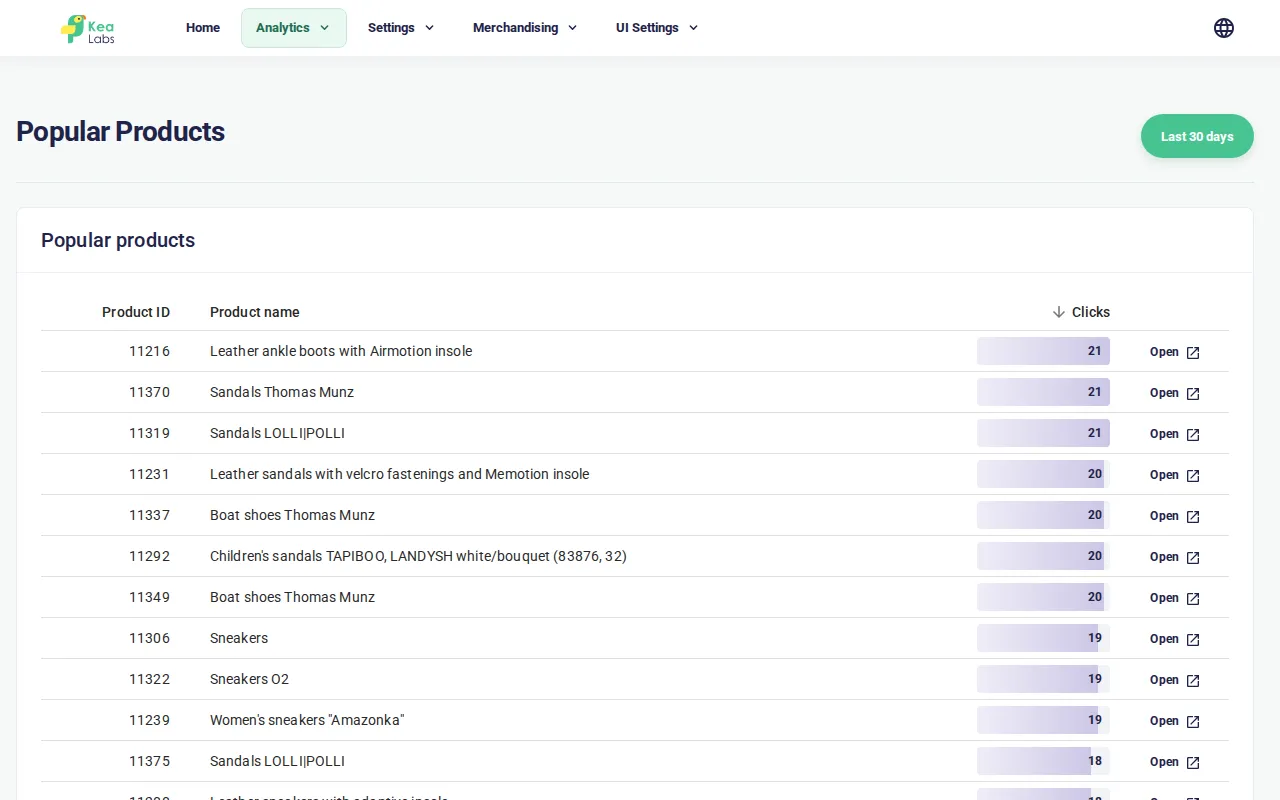
Use this page to confirm which products search is already helping shoppers discover.
What to change after reviewing analytics
Section titled “What to change after reviewing analytics”The Analytics pages do not save settings. Use the report to choose the right action:
- add or edit synonyms when shoppers use different words for the same product;
- change field priorities when the right products exist but rank too low;
- review facets when shoppers need better filtering after a broad query;
- review Card Template or Theme when products are correct but clicks stay low;
- run a catalog reindex when products should exist but do not appear.