
Card Template (PrestaShop)
Card Template is the product-card customization surface exposed in the PrestaShop back office under UI Settings. The same UI Settings group also contains Integration, Theme, and Search Box. Card Template controls how a single product is rendered inside the search results grid and the autocomplete dropdown on your storefront.
This page covers the PrestaShop workflow. For presets, view-model fields, allowed HTML, and save/publish behavior, see Card Template.
Where to find it
Section titled “Where to find it”Open Modules → Module Manager → Kea Labs Search Pro → Configure.
The page loads inside the embedded Configure shell (the admin runs in an iframe inside PrestaShop’s back office). In the embedded sidebar, expand UI Settings and click Card Template. The Card Template entry sits in the same UI Settings group as Integration, Theme, and Search Box. The navigation and layout you see are the same as the standalone admin app; only the chrome around them is PrestaShop’s.
What the page shows
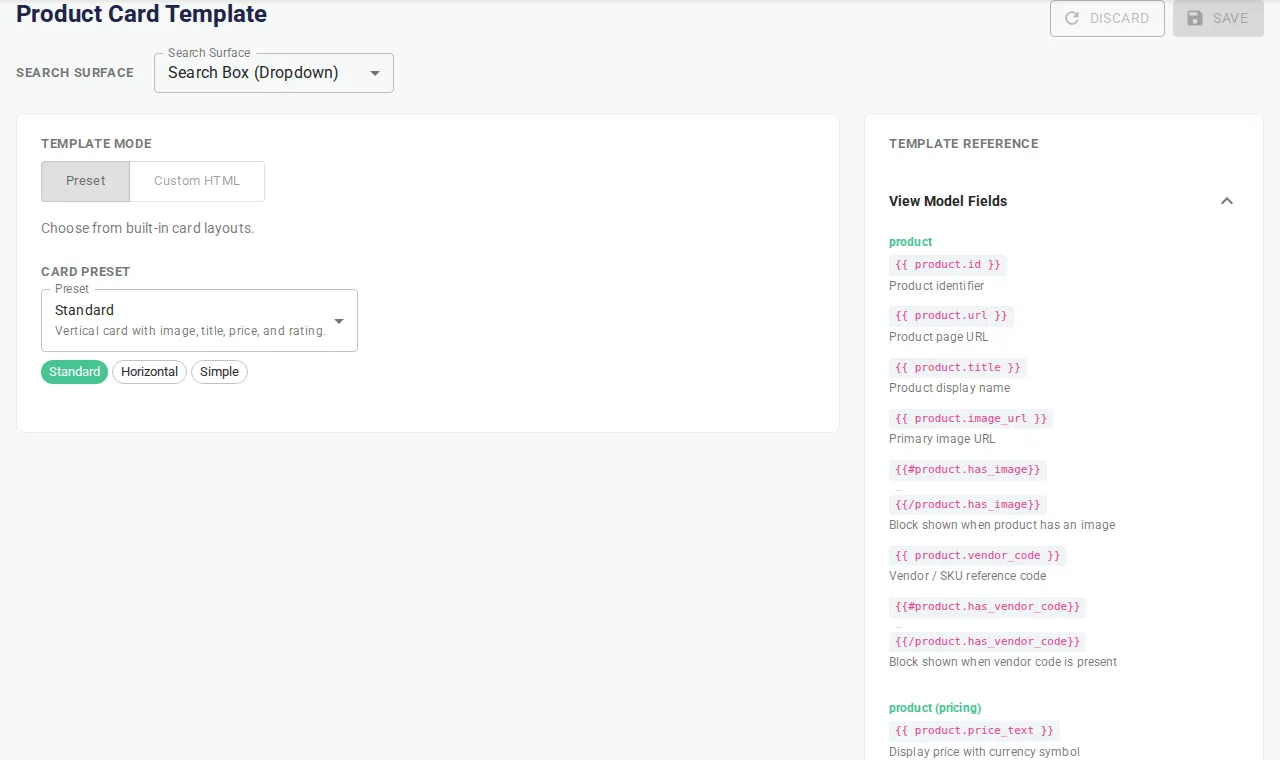
Section titled “What the page shows”The Card Template page is a single settings card with three sections stacked top-to-bottom:
- Surface selector — a dropdown at the top of the page that
switches the editor between the two supported surfaces:
- Search Results Page (default) — the product grid on the storefront search results route.
- Search Box (Dropdown) — the inline result list rendered inside the autocomplete dropdown.
- Template editor — the main editor card on the left of the page. It shows the Preset / Custom mode toggle, the preset picker (when Preset is selected), or the custom HTML textarea (when Custom is selected). The right column shows a help panel with the runtime view-model field catalog and the allowed HTML tag list.
- Preview Issues — a settings card below the editor that surfaces template validation errors after a save.
The top-right actions are Save and Discard. A surface change is also a save boundary: switching the surface selector reloads the editor for the new surface and discards any unsaved changes on the previous one.
How to change a card template
Section titled “How to change a card template”Change the preset
Section titled “Change the preset”- Open UI Settings → Card Template.
- Confirm the Search Surface dropdown is set to the surface you want to edit (Results Page or Search Box Dropdown).
- In the editor, leave the mode toggle on Preset.
- Pick a preset from the Card Preset dropdown. Three built-in
presets are available:
- Standard — vertical card with image, title, price, and rating.
- Horizontal — compact horizontal card with a small image and inline details.
- Simple — minimal card — title and price only, no image placeholder.
- Click Save to validate the change and rebuild the preview bundle.
- Open storefront preview and verify the card.
- Publish the updated search bundle only after preview is correct.
Write a custom template
Section titled “Write a custom template”- Open UI Settings → Card Template.
- Confirm the Search Surface dropdown is set to the surface you want to edit.
- In the editor, switch the mode toggle to Custom HTML.
- Write a Mustache-compatible HTML fragment in the template source textarea. The right-hand help panel lists every field available on the runtime view model and the HTML tags the compiler accepts. Use only those fields and tags.
- Click Save to validate the fragment. Validation errors (an unclosed section, a disallowed tag, an empty fragment) appear in the Preview Issues card below the editor.
- Fix any errors and re-save until the preview is clean.
- Open storefront preview and verify the card.
- Publish the updated search bundle only after preview is correct.
A custom template that fails validation cannot be saved into a usable preview. If the fragment is empty, has an unclosed section, or uses a disallowed tag, the Preview Issues panel reports the failure. The storefront continues to render the last successfully published template until a valid fragment is saved, previewed, and published.
The “unavailable” notice
Section titled “The “unavailable” notice”On older plugin builds, the gateway does not expose the Custom HTML
editor (it is gated on a cardTemplateEditor capability). When that
capability is absent, the editor card shows an info notice:
“Custom template editing requires a plugin update. Preset selection is available below.”
Preset editing remains fully usable in that case — you can still switch the three built-in presets, save, preview, and publish. The Custom HTML toggle is still visible but cannot be selected; the editor is locked to Preset mode.
Use the right page for related changes
Section titled “Use the right page for related changes”- CSS variables (colors, spacing, radius, shadows) and CSS
classes (block-level styling) are not edited on the Card
Template page. The card consumes the documented
--kea-*tokens and the.kea-*class hooks documented in the technical customization reference. Edit those in your theme stylesheet. - Theme colors (the six color pickers that paint the storefront) are configured on the Theme page, also under UI Settings. See Theme.
- Results grid columns, gap, and alignment are configured outside the Card Template page, where the platform exposes layout controls. The card template is the per-product layout; the grid is the container layout.
- Custom template preview is still required. The page reports validation errors for unsupported fields, tags, and Mustache syntax, but the visual preview is on the storefront, not in the admin.
Verify in preview
Section titled “Verify in preview”After Save, the dashboard marks the preview as dirty and starts a preview bundle rebuild. Wait for the build dialog to finish, then open storefront preview. Production is not changed until you publish the updated search bundle.
To verify quickly:
- Open storefront preview and go to the search results page.
- Confirm the new card layout renders.
- Type a query that produces an autocomplete dropdown, and confirm the dropdown card matches the configured preset (or renders the custom fragment without console errors).
Related
Section titled “Related”- Card Template — presets, view-model fields, allowed HTML.
- Theme — the six theme color pickers.
- Product Card block guide — CSS-level patterns for styling the card.
- Search Box — the Search Surface that uses the dropdown card variant.
- Results Page — the Search Surface that uses the results grid card variant.