
Integration (PrestaShop)
The Integration page is where you manage how Kea-powered search is attached to the storefront. It contains two controls:
- the live search toggle, which turns Kea-powered storefront search on or off for shoppers;
- the search experience selector, which chooses whether the storefront uses the widget, a classic results page, or both.
Use this page for go-live, rollback, and search-experience changes after the first setup wizard.
Where to find it
Section titled “Where to find it”In the PrestaShop back office:
- Open Modules -> Module Manager.
- Find Kea Labs Search Pro in the module list.
- Click Configure on the module row.
- The embedded Kea Labs dashboard opens inside the Configure page.
- In the dashboard sidebar, expand UI Settings.
- Click Integration.
The page opens at the dashboard route /search/settings/search-mode.
You do not need to type this route manually; use the sidebar.
Live search toggle
Section titled “Live search toggle”The top section of the Integration page controls whether Kea-powered search is visible to shoppers.
The status badge can show:
| State | Meaning |
|---|---|
| Live | Kea-powered search is visible to shoppers. |
| Off | Live search is hidden from shoppers. |
| Pending on | You turned the switch on, but have not clicked Save yet. |
| Pending off | You turned the switch off, but have not clicked Save yet. |
| Checking | The dashboard is loading the current state. |
Changing the switch is not committed until you click Save at the top of the page. This is deliberate: the Integration page saves live-search changes and search-experience changes together.
If the module is disabled or the current dashboard session does not have permission to manage live search, the switch is disabled and the page shows the reason.
Search experience modes
Section titled “Search experience modes”The second section chooses the storefront search experience. The current admin exposes three options:
| Mode | What shoppers see |
|---|---|
| Search Widget | Instant search results open from the search box. |
| Classic Results Page | Search results open on a dedicated page with the standard search bar flow. |
| Widget + Results Page | Instant results in the search box plus a full results page. |
The cards also show the required setup pieces for the selected mode, such as search box setup, search input placement, results page setup, and results page placement.
Save behavior
Section titled “Save behavior”Click Save after changing the live toggle or the search experience.
When you change the search experience, the dashboard loads the defaults for the target mode, keeps compatible existing placements and colors, and writes the updated configuration to preview. It then marks the selected mode, invalidates the old preview build, and opens the preview build dialog.
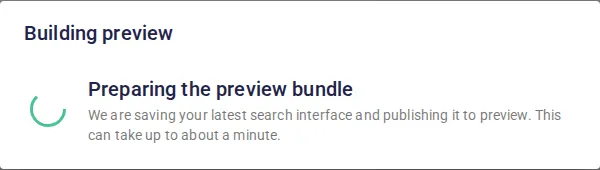
The preview build saves the latest search interface to preview first. Shoppers keep seeing the current live version while this build runs.
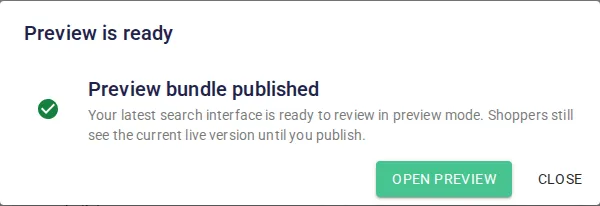
When the preview build finishes, open preview and test the storefront before publishing.
Production is not replaced by the mode change itself. Open preview after the build finishes, check the storefront behavior, and publish only when the preview is correct. Until publish, the dashboard can show an unpublished-changes indicator in the top status area.
When you change only the live toggle, Save commits that toggle state. The storefront may still be affected by normal browser, PrestaShop, CDN, or reverse-proxy caching, so use a private/incognito storefront tab for verification.
Recommended go-live workflow
Section titled “Recommended go-live workflow”- Complete Verify in Preview (PrestaShop).
- Open Search Operations Home and confirm preview/indexing are ready.
- Open UI Settings -> Integration.
- Turn live search on.
- Click Save.
- Open the storefront in a fresh private/incognito window.
- Run the immediate checks in Go Live (PrestaShop).
Recommended rollback workflow
Section titled “Recommended rollback workflow”If shoppers see a critical issue:
- Open UI Settings -> Integration.
- Turn live search off.
- Click Save.
- Open the storefront in a fresh private/incognito window and confirm the default PrestaShop search path is back.
- Investigate the failure in preview before turning live search on again.
Rollback should happen before root-cause investigation. The goal is to restore a clean shopper experience first.
Use the right page for related settings
Section titled “Use the right page for related settings”Integration does not edit:
- the Search Box interface details; use Search Box (PrestaShop);
- Theme colors; use Theme (PrestaShop);
- Card Template; use Card Template (PrestaShop);
- synonyms, fields, and facets; use Search Management (PrestaShop);
- catalog indexing; use Catalog Indexing (PrestaShop).
Use the sidebar entry, not a manually typed dashboard route, when you manage live search.
Screenshot
Section titled “Screenshot”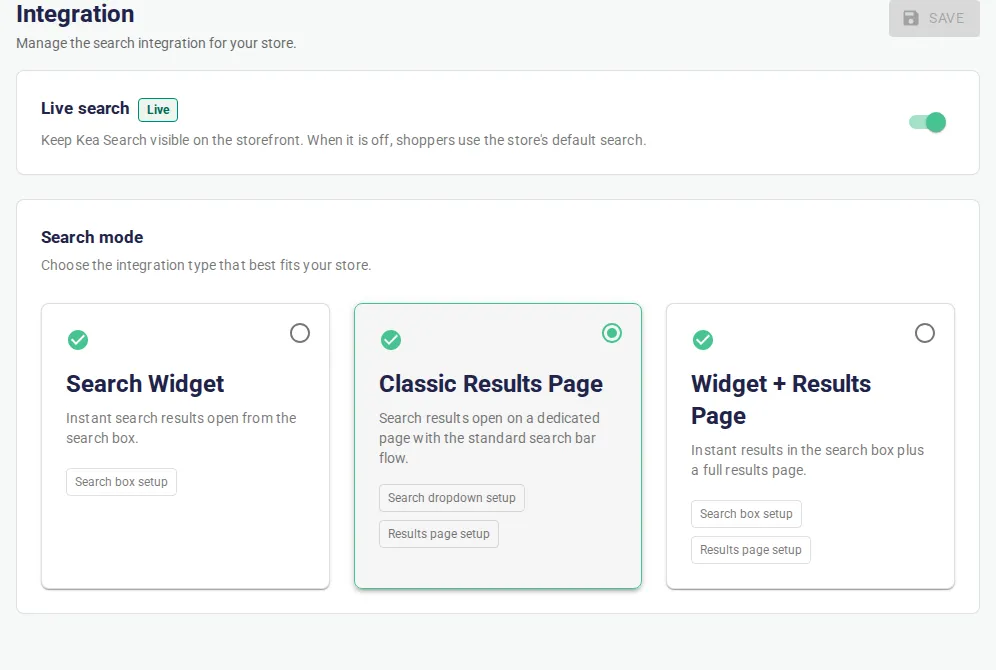
This screenshot shows the current UI Settings -> Integration page in the real PrestaShop Configure iframe. The page contains the live search toggle, status badge, search experience cards, and Save button.