
Diagnostics (PrestaShop)
Diagnostics is the place to check the module state when something does not look healthy: preview does not open, indexing is stuck, live search does not match the dashboard state, or Kea Labs support asks you to collect the current status.
Use Diagnostics to inspect and recover. Do not use it for normal design or search-management changes.
Where to find it
Section titled “Where to find it”In the PrestaShop back office:
- Open Modules -> Module Manager.
- Find Kea Labs Search Pro in the module list.
- Click Configure on the module row.
- The embedded Kea Labs dashboard opens inside the Configure page.
- In the dashboard navigation, open Settings -> Diagnostics.
What the page shows
Section titled “What the page shows”Diagnostics groups the operational signals that matter when search is not behaving as expected:
| Area | What it tells you |
|---|---|
| Summary | Whether the dashboard currently sees a healthy state. |
| Catalog Processing | Whether the catalog is ready, processing, or failed. |
| Preview | Whether preview build and browser checks are known. |
| Recent issues | Operational events that can explain a change in search behaviour. |
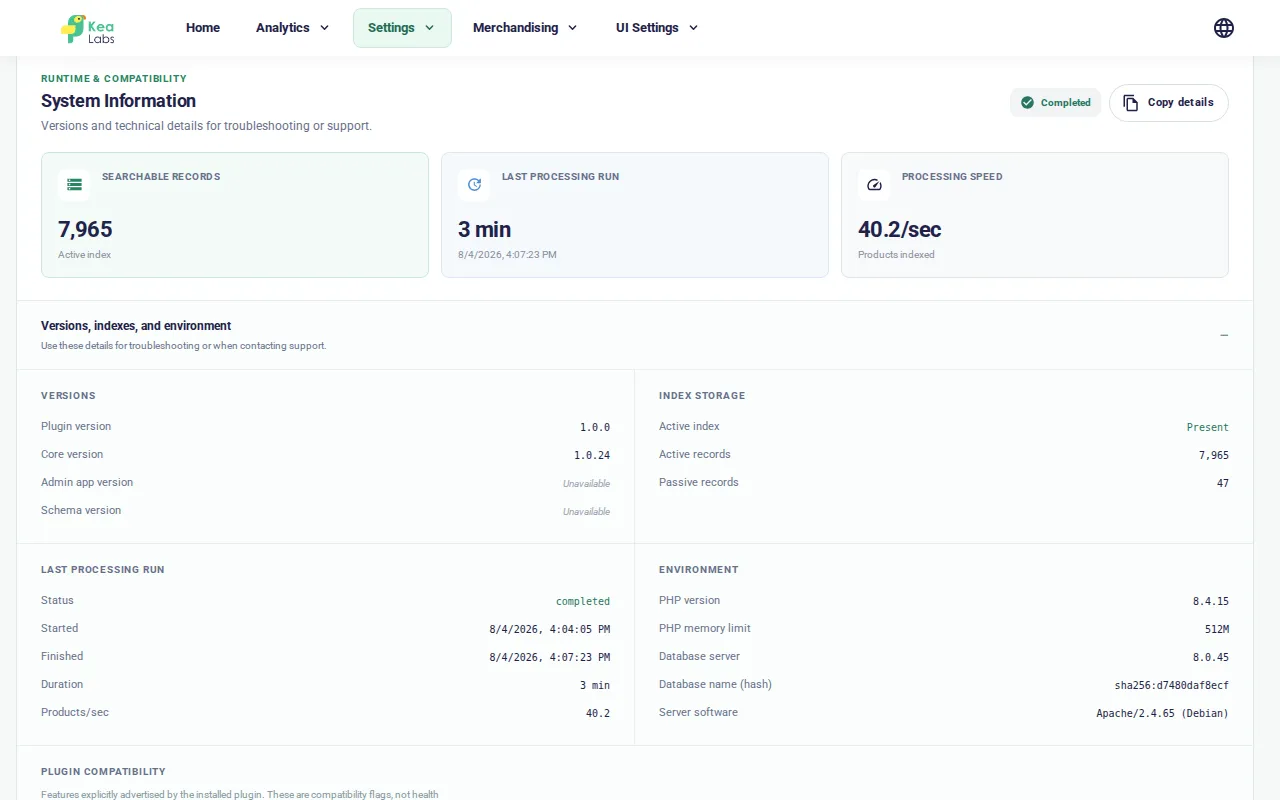
| System Information | Runtime versions, index storage, processing metrics, environment details, and plugin compatibility signals useful for support. |
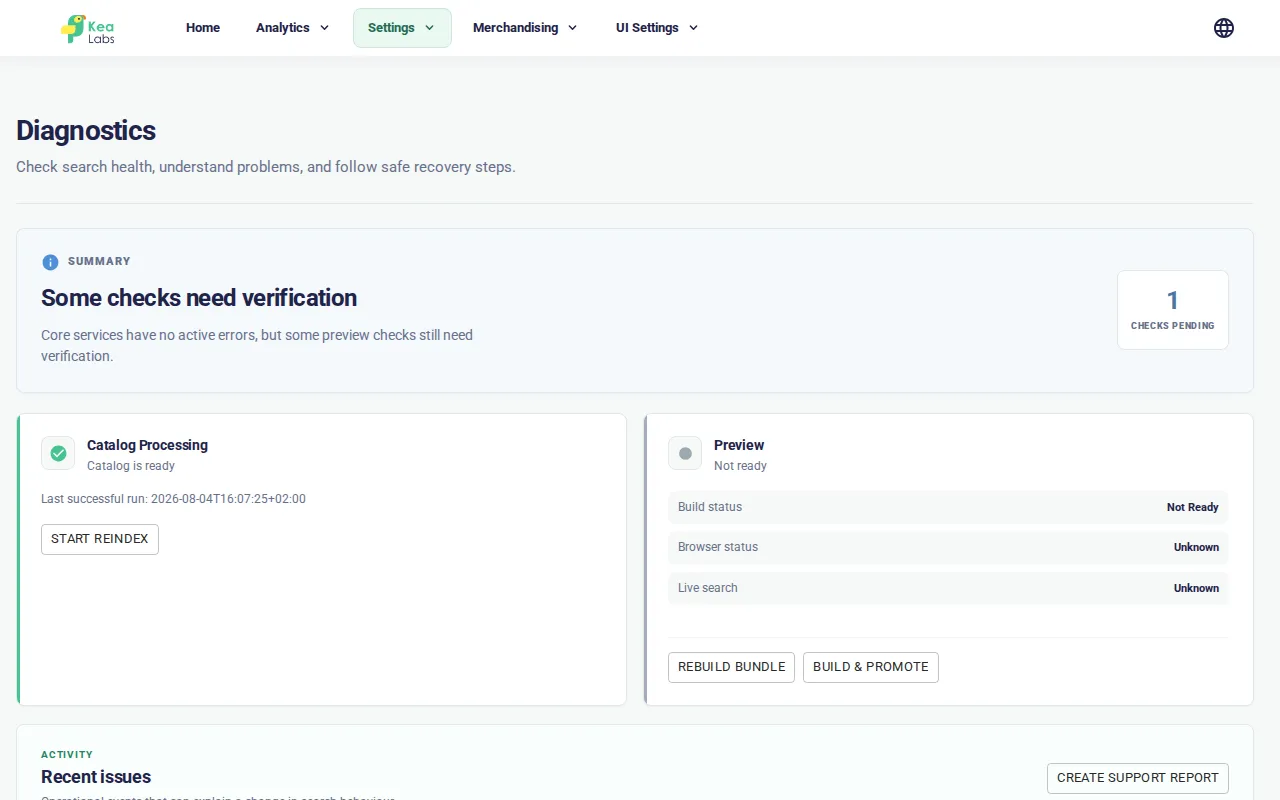
If the top header shows a Diagnostics warning indicator, open this page and start with the area marked as warning or error.
Common actions
Section titled “Common actions”Use the actions on this page deliberately:
| Action | When to use it |
|---|---|
| Start Reindex | The catalog status is stale, failed, or does not match the current PrestaShop catalog. |
| Open Preview | You need to verify the storefront before publishing or turning live search on. |
| Rebuild Bundle | Preview assets look stale after a search-interface change. |
| Build & Promote | You have verified the intended configuration and need to build and promote it. |
| Create support report | You need to package recent diagnostic events for Kea Labs support. |
| Copy details | Kea Labs support asks for runtime and compatibility details. The button copies the full System Information snapshot to your clipboard. |
The Copy details action includes versions, index and processing state, environment information, and advertised plugin capabilities in one clipboard payload. Review it before sharing if your support process requires that.
If you are not sure which action to take, start from Search Operations Home. Home shows the recommended next action for the current state.
What Diagnostics does not change
Section titled “What Diagnostics does not change”Diagnostics does not edit synonyms, fields, facets, theme colors, search mode, product-card markup, or Empty Query merchandising. It can start operational recovery actions, but feature configuration lives on the feature pages.