
Search Box (PrestaShop)
The Search Box is the input field the shopper uses to enter a query on the storefront. In the current PrestaShop embedded dashboard, Search Box is a standalone page under UI Settings.
This is a no-code configuration page. It is not the advanced CSS/template customization area, and it is not the full Search Experience visual editor.
For the Search Box behavior that is the same across platforms, see Search Box. This page covers the PrestaShop workflow.
Where to find it
Section titled “Where to find it”In the PrestaShop back office:
- Open Modules -> Module Manager.
- Find Kea Labs Search Pro in the module list.
- Click Configure on the module row.
- The embedded Kea Labs dashboard opens inside the Configure page.
- In the dashboard sidebar, expand UI Settings.
- Click Search Box.
The page opens at the dashboard route /search/settings/searchbox. Use
the sidebar rather than typing the route manually.
What the Search Box page shows
Section titled “What the Search Box page shows”The current Search Box page contains two sub-tabs:
| Sub-tab | What it controls |
|---|---|
| Interface | Setup-style controls for the active search input/search box view. The exact controls depend on the selected search experience and the view currently present in the configuration. |
| Integration | Desktop and mobile CSS selectors used to attach the search input/search box to existing storefront theme elements. |
The page reuses embedded setup components from the first setup wizard so merchants can adjust the active search input after setup.
Depending on the selected search experience, labels can refer to Search Box or Search Input. That is expected: Classic Results Page mode uses a classic input path, while Search Widget mode uses the widget search box path.
Interface sub-tab
Section titled “Interface sub-tab”Use Interface for shopper-facing Search Box settings exposed by the current view. Depending on the active search experience, these controls can include block visibility and product-display settings such as enabled blocks, product count/layout, and product-card orientation.
Do not use this sub-tab for CSS selectors, custom CSS, or template markup. Those belong to the Integration sub-tab or advanced customization.
Integration sub-tab
Section titled “Integration sub-tab”Use Integration when the Search Box does not attach to the correct storefront element.
The current page has separate selector lists for desktop and mobile. Each list can contain multiple CSS selectors. The dashboard attaches search to all matching elements.
Typical selector examples:
#search_widget input[name="s"].header-search-button.mobile-header .search-toggleAfter changing selectors, test at least the home page, category page, product page, and search results page. PrestaShop themes often render the header differently across templates and breakpoints.
How to change Search Box settings
Section titled “How to change Search Box settings”- Open UI Settings -> Search Box.
- Use Interface for controls exposed by the active view.
- Use Integration for desktop/mobile selector placement.
- Click Save Changes at the top of the page.
- If the dashboard starts a preview rebuild, wait for it to finish.
- Open storefront preview and test the search input on desktop and mobile.
- Publish the updated search bundle after preview is correct. If live search is off, turn it on from UI Settings -> Integration after publishing.
A Search Box save changes the preview configuration first. Production changes only after you publish the updated search bundle.
Use the right page for related changes
Section titled “Use the right page for related changes”The Search Box page does not control:
- Live search on/off - use Integration (PrestaShop).
- Which product fields are searched - use Search fields and priorities.
- Synonyms, filters, and setup wizard behavior - use Search Management (PrestaShop).
- Theme colors - use Theme (PrestaShop).
- CSS variables and deep selectors - use Advanced Customization (PrestaShop).
- Product-card template markup - use Card Template (PrestaShop).
Search relevance, filtering, catalog data, and custom markup are managed elsewhere.
Screenshot
Section titled “Screenshot”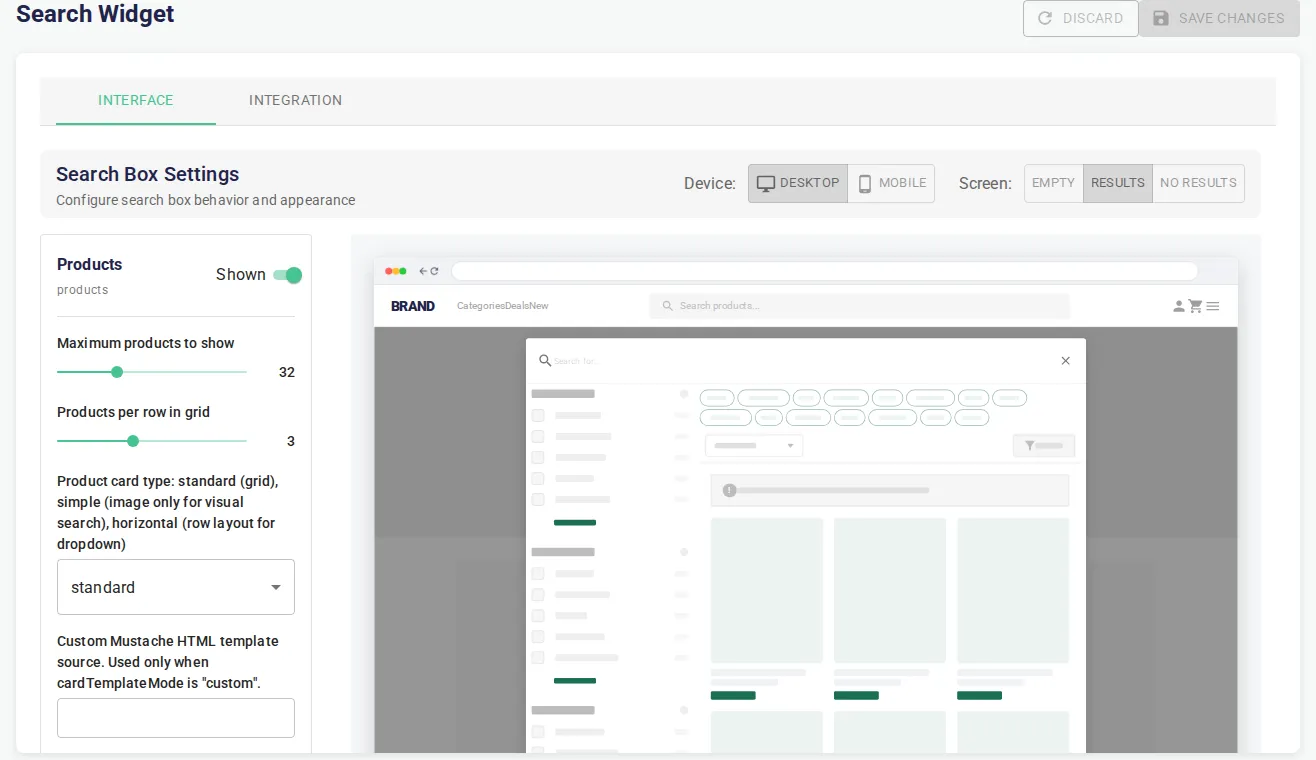
This screenshot shows the current UI Settings -> Search Box page in the real PrestaShop Configure iframe, including the Interface and Integration sub-tabs used for no-code search box configuration.
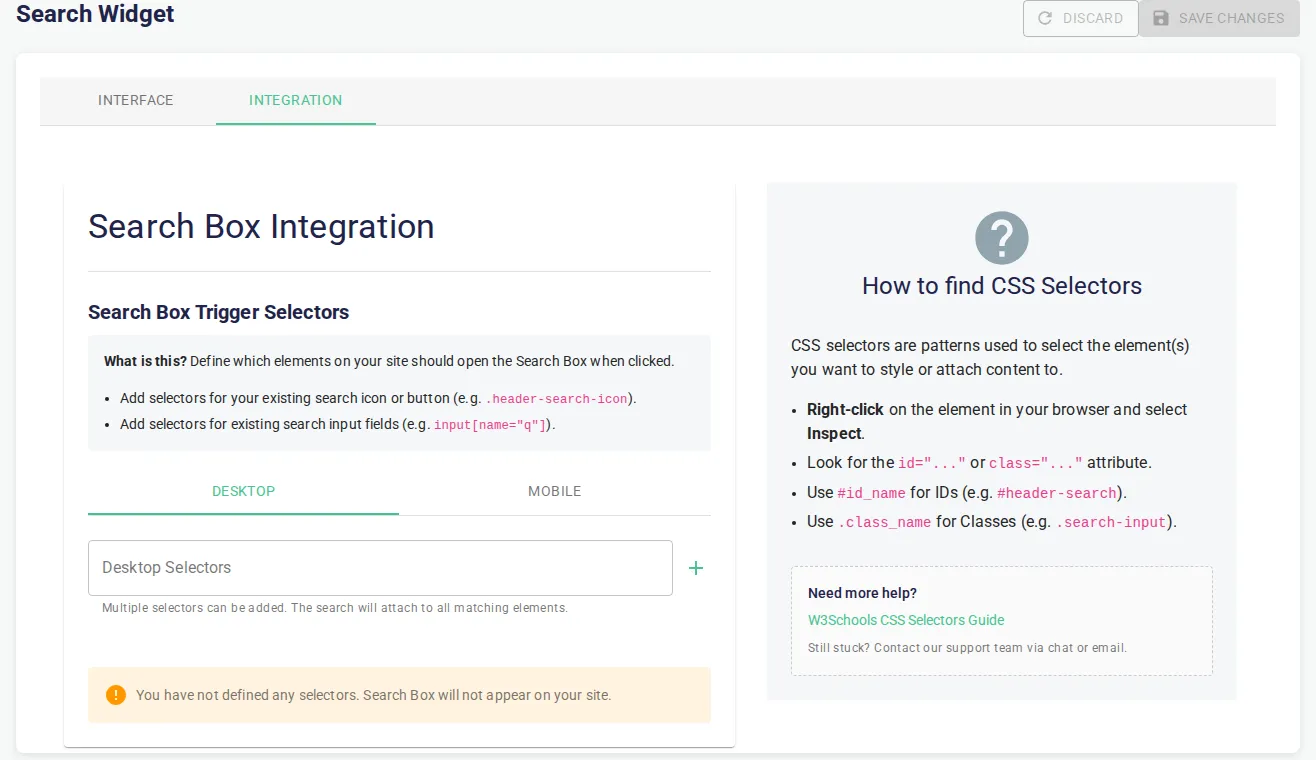
This screenshot shows the Integration sub-tab, where desktop and mobile CSS selectors attach the search box to the storefront theme.