
Empty Query (PrestaShop)
Empty Query is the customization surface that controls what shoppers see when they first land on the search interface without typing anything: a “no query yet” panel that surfaces popular terms, suggested words, category links, and pinned products. It is exposed in the PrestaShop back office under Merchandising.
This page covers the PrestaShop workflow. For manual entries, auto-generated suggestions, the four editor sections, and the single combined save, see Empty Query.
Where to find it
Section titled “Where to find it”Open Modules → Module Manager → Kea Labs Search Pro → Configure.
The page loads inside the embedded Configure shell (the admin runs in an iframe inside PrestaShop’s back office). In the embedded navigation, open Merchandising → Empty Query. The Empty Query entry is the only entry currently exposed under Merchandising. The navigation and layout you see are the same as the standalone admin app; only the chrome around them is PrestaShop’s.
What the page shows
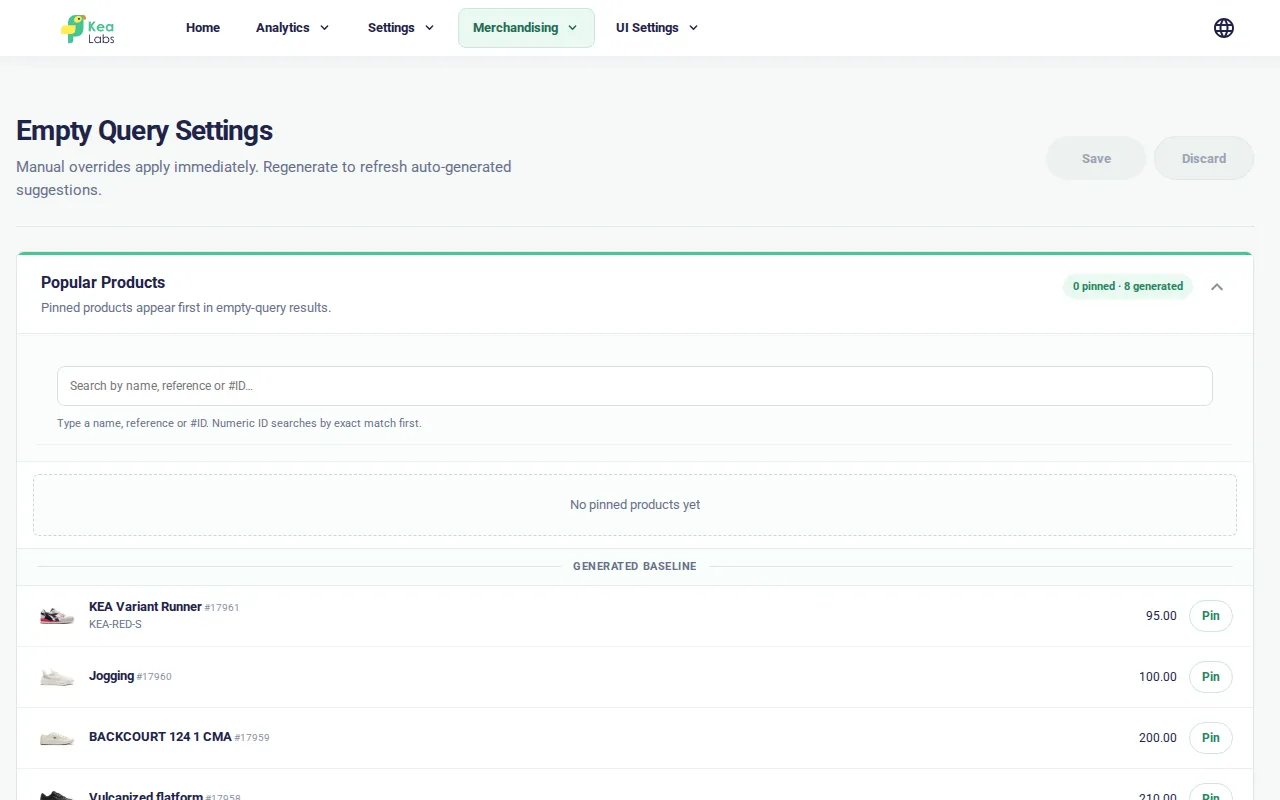
Section titled “What the page shows”The Empty Query page has four visually separate, collapsible editor cards, stacked top to bottom:
- Popular Products — individual products that are pinned to the empty panel.
- Popular Categories — category links surfaced alongside the term suggestions.
- Popular Queries — short search phrases surfaced as chips.
- Suggestions — single-word search terms surfaced as suggestions.
Each editor has the same shape:
- A manual list (pinned by the operator) at the top, with per-row delete.
- An add control suited to that section: catalog search for products and categories, or a text entry for queries and suggestions.
- An auto-generated preview below, showing what the catalog indexing job currently provides for that section. It is a read-only baseline, refreshed by a catalog reindex. Manual pins appear before this baseline in the empty-query experience.
A single Save / Discard button group sits in the page header. It applies to all four editor cards as one combined payload — there is no per-sub-editor save button on this page.
How to pin a manual entry
Section titled “How to pin a manual entry”The same workflow applies to all four editors. To pin a product, category, query, or word:
- Open Modules → Module Manager → Kea Labs Search Pro → Configure, then in the embedded navigation click Merchandising → Empty Query.
- Open the editor of choice (Popular Products, Popular Categories, Popular Queries, or Suggestions).
- Search the catalog for a product or category, or enter the query or suggestion text. You can also choose an item from the generated baseline.
- Click Pin or use the section’s add action. The entry shows up in the manual list at the top, marked as Pinned.
- To pin multiple entries, repeat for each one. To remove a pin, click the trash-can icon on the row.
- When the manual list is ready across all four editors, click Save in the page header to push the combined manual list to the production configuration. A confirmation banner reports the save and reminds you that the auto-generated preview is refreshed by a catalog reindex, not by this save.
Manual entries stay live for the shopper across catalog reindexes and appear before generated content. The generated baseline can change after the next reindex; saving manual pins does not regenerate it.
How to remove a pinned entry
Section titled “How to remove a pinned entry”- Open Merchandising → Empty Query.
- In the editor of choice, find the row in the manual list.
- Click the trash-can icon at the end of the row.
- Click Save in the page header.
The row disappears from the storefront on the next page load.
When the catalog has not yet been indexed
Section titled “When the catalog has not yet been indexed”If the catalog indexing job has not yet run for the current shop, the four auto-generated preview panels show a “Generate an index to see auto-generated suggestions” message.
The manual editor remains fully usable in that state: you can still add products, categories, queries, and suggestions with the manual controls, save them, and the manual list reaches the storefront. To populate the auto-generated preview, run a catalog reindex from the catalog indexing area — the empty-query page does not expose a page-local reindex action.
Save and discard
Section titled “Save and discard”- Save pushes the combined manual list across all four editor cards to the production configuration in a single request. A confirmation banner reports the save. The Save button stays disabled until at least one editor is modified.
- Discard reverts the manual list across all four editor cards to the last saved state. Any unsaved pins, removals, or reorderings are dropped in a single click.
There are no per-editor save buttons on this page. Editing two editors and clicking Save once commits both lists in a single combined payload.
If the save fails (network error, gateway timeout), a red banner appears at the top of the page with the error message and the manual list is left in the unsaved state. Re-click Save to retry.
Use the right page for related changes
Section titled “Use the right page for related changes”- The search results page, the search box, and the autocomplete dropdown are independent surfaces, each with its own configuration page in the search customization area. The empty-query panel is what shoppers see before they type; the other surfaces are what they see after.
- Theme colors are configured on the Theme page under UI Settings, not on the empty-query page. See Theme.
- A page-local reindex is not exposed here. The auto-generated preview is read from the catalog indexing job; refreshing it requires a catalog reindex initiated from the catalog indexing area, not from this page.
- Catalog taxonomy is not exposed on the empty-query page. The category picker on this page searches the existing PrestaShop category index, not a separate taxonomy. The experimental taxonomy customization surface is not currently exposed in the PrestaShop back office sidebar.
Verify in preview
Section titled “Verify in preview”After saving a manual list, the storefront needs to pick up the new empty-query content. The change is read from the same configuration the rest of the search experience reads, so a storefront preview cache refresh is normally enough.
To verify quickly:
- Open the storefront home page in an incognito window.
- Click the search box without typing — the empty-query panel should appear under or beside the search box.
- Confirm the manual list (pinned products, categories, queries, suggestions) matches what you saved.
- The auto-generated preview on the admin page reflects what the catalog indexing job most recently produced; to see that preview change, run a catalog reindex from the catalog indexing area, then reload the empty-query page.
Related
Section titled “Related”- Empty Query — manual entries, auto-generated suggestions, and the four editor sections.
- Search Box — the search surface the empty-query panel sits behind.
- Autocomplete — the dropdown block model, including the empty-query preview.
- Catalog Indexing — the indexing job that produces the auto-generated preview.
- Theme — the theme color tokens that paint the empty-query panel.